Why should a small business consider refurbished laptops at all?
A laptop for your team is not a personal purchase multiplied by five. It is a tool someone lives in from open to close, software that has to behave identically on every desk, and a budget that still has to cover payroll. That combination is exactly where refurbished laptops earn their place, because business-grade notebooks are built to a higher standard than consumer ones in the first place, and a huge share of them come off corporate leases still early in their working life.
The savings matter, but they are not the whole argument. The money that buys one mid-range consumer machine will often buy two or three properly specced business laptops, and when you need a machine for everyone on the books, that changes what is possible. Business-class machines are also easier to keep running than anything picked off a retail shelf: standardised parts, published service manuals and firmware that is supported for years rather than months.
The catch is that the word refurbished covers everything from a genuine fleet machine reconditioned to a proper standard, all the way to a private seller's tired notebook sold as-is. Everything below is about telling those apart before you commit a month of cash.
What does ex-lease actually mean, and why does it suit business buyers?
Companies and government departments fund most of their laptops through multi-year lease agreements. When a lease ends, hundreds of identical machines come back at once, and many of them were treated gently: office duty, docked to a monitor, serviced on schedule. Refurbishers buy those lots in bulk, test them, repair what fails and sell them on.
That pipeline is why the ex-lease market is dominated by business lines such as the Dell Latitude and the Lenovo ThinkPad rather than the thin consumer models you see advertised in shops. A Latitude-class machine is engineered for exactly the life it lived: a stiff hinge, a spill-resistant keyboard and spare parts that stay available for years. It is also why the Dell laptop collection is full of them. Before you compare listings, our Latitude model-number explainer is worth a few minutes, because inside one series the gap between the 3000, 5000 and 7000 classes is real, and that gap is the build quality you are paying for.
For a small business the bigger win is a uniform fleet. Identical models mean one driver set, one disk image, one dock design and spare parts that fit every desk. Mixed fleets of one-off bargains are what quietly drain the support budget, one oddball power brick at a time.
Which specs should you insist on for everyday work?
Most small-business workloads run out of memory before they run out of processor: the browser with forty tabs, the accounting package, the CRM and the video call all open at once. That gives you a clear priority order when you read a spec sheet.
- Memory first. Treat 16GB as the comfortable target for a main workstation and eight as the floor for lighter roles. On most modern thin laptops the memory is fixed at purchase and cannot be added later, so you buy it once or you live without it.
- A real solid-state drive. 256GB is plenty when files live in the cloud; go to 512GB for anyone handling big local project files. At this class of machine, a fast drive does more for perceived speed than any small processor upgrade.
- A screen and keyboard worth eight hours. People stare at these all day. A 13 to 15-inch display at full HD, meaning 1920 x 1080 or better, is a sane floor for a shared machine, and keyboards are easy to test in person or hard to return, so weigh that trade honestly.
- A battery that still works. A laptop living on a cable is a desktop with a lid on it. Ask the seller for the battery cycle count and whatever health figure they publish; our second-hand laptop checklist explains how to read those numbers before you hand over money.
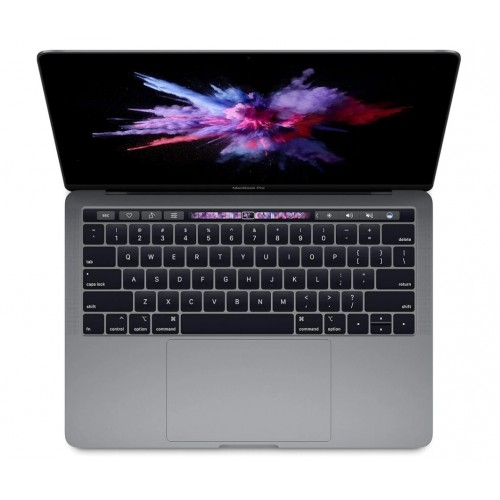
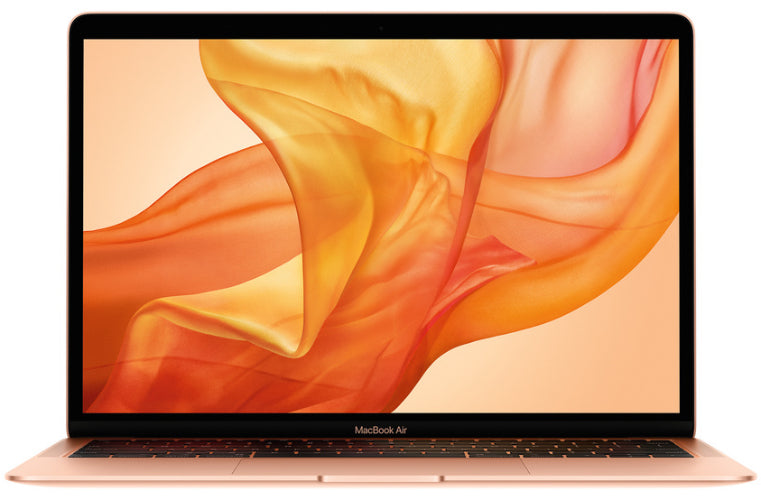
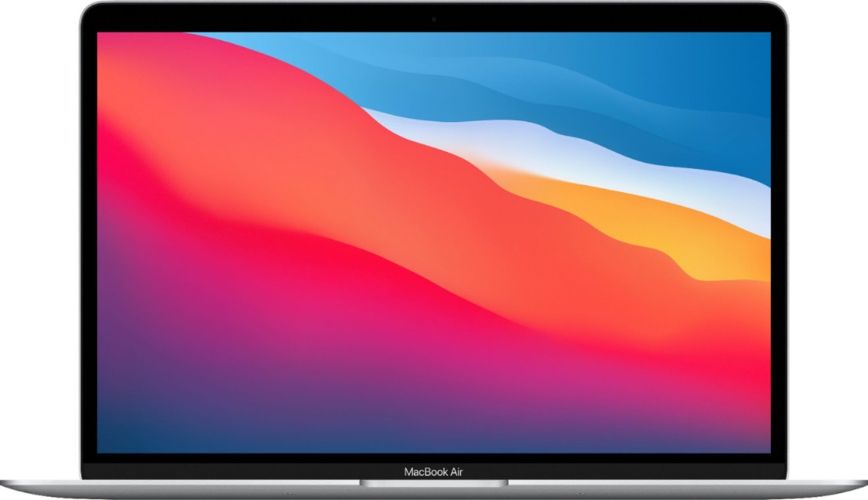
Let the software, not the badge, decide between Apple and Windows. A design team, a video editor or an office already running Apple tools will be happier on a refurbished MacBook. If you need to know which machines still receive macOS feature updates, Apple keeps current support lists on apple.com, so check the exact model against the live list before you commit rather than trusting a rule of thumb from a forum. Everyone else gets a plainer and cheaper path from a Latitude-class Windows machine.
One more spec rule for fleets: resist the urge to buy one over-specced hero machine and four bargain ones. Uneven capability concentrates work on one desk while everyone else waits on software. A matching batch of mid-spec machines almost always beats a mixed bag.
What should you check about the seller before you order?
When you order five laptops instead of one, the seller's promises matter five times over. Three things are worth pinning down before checkout.
First, grading. Every listing should state a condition grade plainly, and a good seller will explain what each grade covers; ours is spelled out in the condition guide. Grades describe cosmetics, while function is a separate question answered by testing. Ask any seller what their testing actually includes. Ours is done machine by machine, and every device is tested and graded in Auckland, with the results written down rather than waved at.
Second, what happens when something goes wrong, in writing. Concretely, that means a 12-month warranty and a 15-day change-of-mind window so a batch can come back if it turns out wrong for the way your people actually work. Those are two different protections and you want both. Then check the delivery terms, because if machines are going out to staff in the regions, free NZ-wide delivery changes the maths on every site. The shipping page and the FAQ spell out how orders are packed and sent.
Third, your own rights. Buying from a trader in New Zealand comes with basics you can read directly at Consumer Protection. Trading in company name can shift some of the detail, so read that before you rely on it, not after a problem appears.
What happens to the old laptops when you upgrade?
They are not scrap. A business laptop of a few years old still holds real working value, and turning it in in an organised way funds part of the next batch. At EcoLoop the trade-in page starts that process; the offer depends on the model, the condition and whether the machine was prepared properly before it went.
Preparation is where most organisations leave money on the table. A laptop still signed into a work or personal account lands in a lower grade than the same machine wiped and signed out. Back up, sign out, wipe, and include the charger. Our MacBook trade-in guide walks through what moves the number, and the same factors apply to any brand of business laptop.
Then, when the new batch arrives, onboarding takes a day rather than a week of surprises: every machine tested and graded in Auckland, covered by a 12-month warranty and the 15-day change-of-mind window, arriving with free NZ-wide delivery. Choose the specs from the list above, choose a seller who answers the three questions plainly, and a refurbished fleet will run your business exactly as well as the one you could not afford new.