Does the year in a MacBook listing actually matter?
Search for a used MacBook in New Zealand and nearly every listing leads with a year. 2017. 2018. 2020. 2022. On most laptop brands that number is a rough age signal and not much more. On MacBooks it matters far more than that, because one of the biggest changes in Apple's history lands right in the middle of the range you are shopping in.
Two things move with the year, and both of them you will feel every day: the processor family, and the keyboard. Get those two right and the rest is storage, memory and cosmetic condition.
What changed in late 2020: Intel to Apple silicon
Until the end of 2020, every Mac used an Intel processor. In November 2020 Apple started shipping Macs built around its own chip, beginning with the MacBook Air and the 13-inch MacBook Pro. That chip was the M1, and the machines around it look almost identical to the Intel models they replaced.
The difference is in how they behave. The M1 MacBook Air has no fan at all, so it is silent under load that would have had the Intel Air spinning up. Both M1 machines run cool, wake instantly and go far longer on a charge than the Intel generation did. For the things most people actually do with a laptop, an M1 machine from 2020 feels newer than its year suggests.
Software is a smaller issue than it was at the time of the switch. Apple silicon Macs run older Intel-only apps through a translation layer called Rosetta 2, and most of the software people use day to day now ships with native Apple silicon support anyway.
There is one real trade-off. Intel Macs could install Windows directly through Boot Camp. Apple silicon Macs cannot. If you specifically need to boot into Windows on the metal, that requirement points you back at an Intel machine, and it is the main reason to buy one deliberately rather than by accident.
2017 to 2019: the Intel years and the keyboard problem
This is the part of the range where the year matters most, and it is almost entirely about the keyboard.
From 2016 Apple moved its laptops to a very shallow butterfly key mechanism. It stayed across most of the line through 2019. Owners found it noisy, and crumbs or dust could leave a key repeating or not registering at all. Apple went back to a scissor mechanism, marketed as the Magic Keyboard, in stages: the 16-inch MacBook Pro in late 2019, the MacBook Air in early 2020, and the 13-inch MacBook Pro in mid-2020.
So within the Intel era:
- 2017 covers the last of the old wedge-shaped MacBook Air, with a low-resolution display that looks dated next to anything after it, plus the discontinued 12-inch MacBook with its single port.
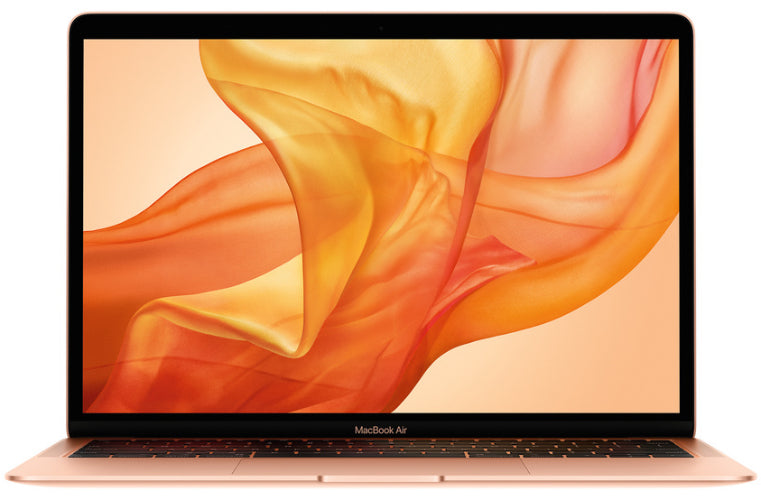
- 2018 and 2019 brought the Retina MacBook Air with Touch ID and USB-C, which is a genuinely nicer machine, but these are butterfly keyboard years.
- Early 2020 is the sweet spot of the Intel era: Retina display, Magic Keyboard, and a price position below the Apple silicon machines.
If you are looking at a 2018 or 2019 body, that is not automatically a reason to walk away. Many of these keyboards have already been serviced, and plenty of them are fine. But it is the one thing worth testing properly, key by key, before you commit. Our second-hand laptop checklist walks through how to do that on any used machine.
2020 to 2022: how much chip do you actually need?
Once you are into Apple silicon, the year tells you which chip generation you are getting.
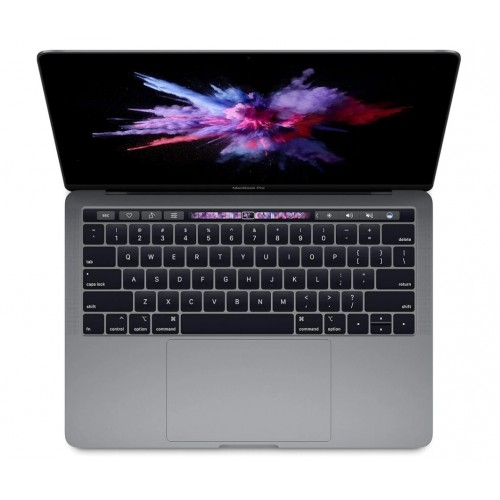
M1 (late 2020) arrived in the MacBook Air and the 13-inch MacBook Pro. Both still handle browsing with a lot of tabs, documents, video calls and light photo work without complaint. The Air is fanless; the 13-inch Pro has a fan and a Touch Bar, so it holds its speed longer on a sustained job like a long export.
M1 Pro and M1 Max (late 2021) came in the redesigned 14-inch and 16-inch MacBook Pro. That redesign is the one that brought back HDMI, an SD card slot and MagSafe charging, and added a much brighter high-refresh display. This is the tier to look at if you edit video, compile code or run virtual machines.
M2 (2022) landed in a reshaped MacBook Air with flat sides, a slightly larger display and MagSafe, and in a 13-inch MacBook Pro that kept the older body. The jump in raw speed from M1 to M2 is modest. The redesign is the real reason to prefer the M2 Air.
Put bluntly: if your work is writing, study, browsing and office software, the chip stopped being the bottleneck at M1. Memory and storage matter more. Eight gigabytes of memory is workable for a single-task day; sixteen is what you want if you keep a lot of applications open at once or run anything heavy alongside your browser.
So which year should you actually buy?
A short way to decide:
- You want the best balance of age and value. Start at the M1 machines from late 2020. They are the oldest Apple silicon MacBooks and they still feel current.
- You want the newest body and MagSafe back. Look at 2022 for the Air, or 2021 for the 14-inch and 16-inch Pro.
- You are working to a tight budget. An early-2020 Intel MacBook Air gives you a Retina screen and a reliable keyboard. Skip the 2017 wedge Air unless the condition is excellent and it is priced to match its age.
- You need to boot Windows natively. You need an Intel machine, which means 2020 or earlier.
Whatever year you land on, the condition of the body and the state of the battery matter as much as the model. Ask for the battery cycle count, and read our condition guide so you know what each grade actually describes before you compare listings.
How do you check what a listing is really selling?
Year labels in listings get sloppy, especially where Apple sold two different machines close together. The reliable identifier is the A-number printed in small text on the underside of the case, or the model line in About This Mac under the Apple menu. Our MacBook model numbers guide explains how to read those and which machine each one belongs to.
Once you know the exact model, check the memory and storage, because neither can be upgraded later on any of these machines. Then see current prices on the model pages in our MacBook collection, or browse the wider laptop range if you are still comparing against a Windows machine. If you have an older Mac sitting in a drawer, you can put it towards the new one through trade-in.