What should you check before buying a second-hand laptop?
A used laptop hides its condition better than a used phone does. A phone is a slab of glass you can read in a few seconds — a laptop has a hinge, a keyboard, a battery that has been charging every day for years, a fan full of dust and a drive that may or may not have been wiped properly. Two machines with the same model number and the same tidy exterior can be very different buys.
The good news is that almost everything that matters can be checked in about ten minutes with no tools. What follows is the order we work through when machines arrive at our workshop, trimmed down to the parts you can do yourself on a kitchen table or in a carpark handover. If you would rather skip the inspection entirely, everything on our laptop range page has already been through it — but the checklist is still worth knowing, because it tells you what the listing should be telling you.
How healthy is the battery, really?
Battery is the number that separates a genuinely useful laptop from one that lives permanently tethered to a wall socket, and it is the one thing that a visual inspection cannot tell you. Every lithium battery loses capacity as it ages, and the count that matters is charge cycles, not the calendar.
On Windows, open a command prompt and run `powercfg /batteryreport`. It writes an HTML report to your user folder; open it and look for design capacity against full charge capacity. A machine sitting near three-quarters of its original capacity is normal for a fleet laptop that has been in service a while. One that has dropped below half will need mains power for anything longer than a meeting.
On a Mac, hold Option, click the Apple menu, choose System Information and open the Power section. You will see cycle count and a condition line. Apple publishes the cycle limit for each model on apple.com, so you can compare the count you are looking at against what that specific machine was designed for rather than guessing.
Two warning signs that outrank any number: a battery that will not hold a charge while you are standing there looking at it, and any bulge that makes the trackpad sit proud or stops the laptop lying flat. A swollen battery is a replace-it-now problem, not a haggling point.
Are the specs the ones you actually need?
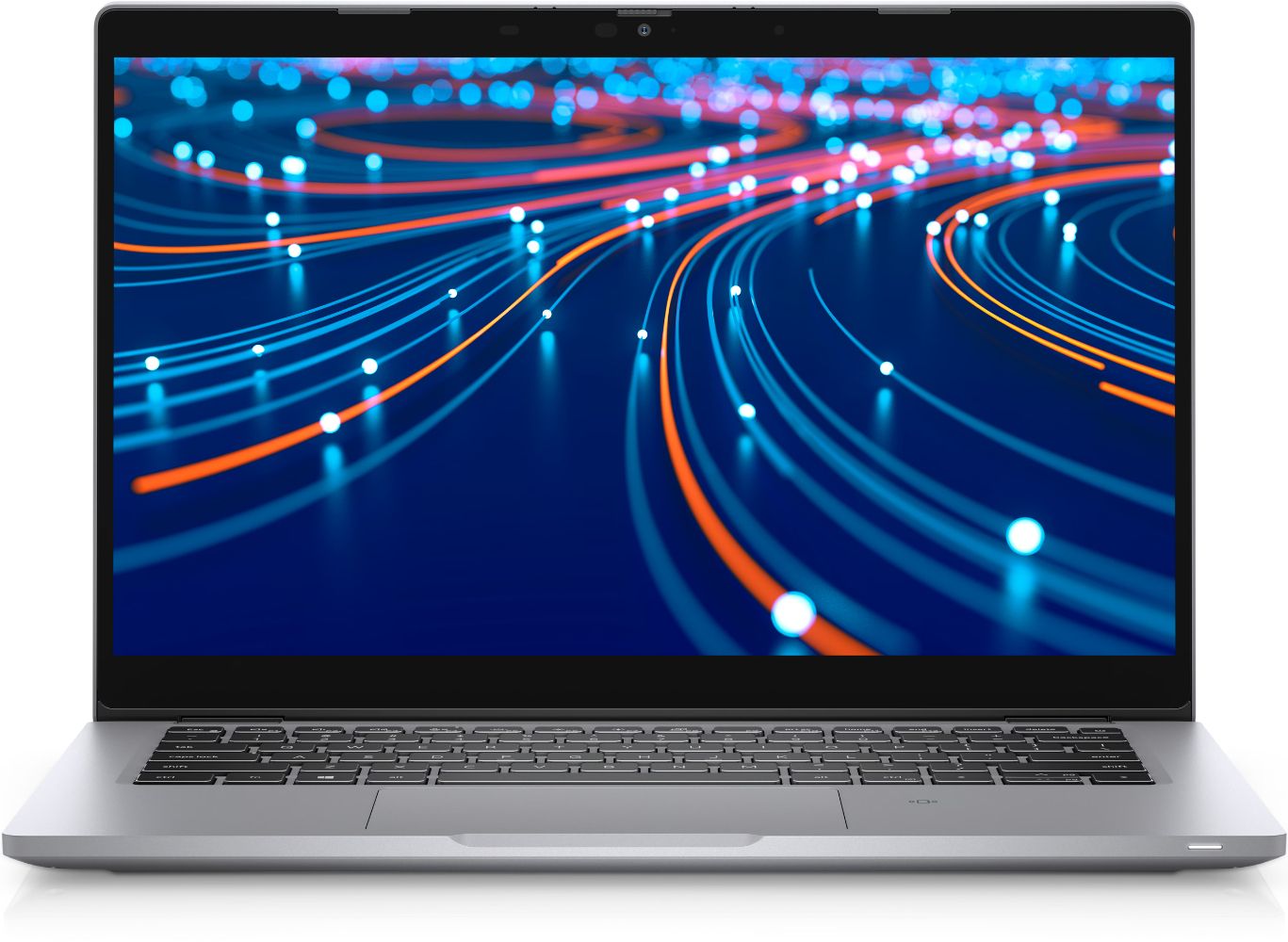
Model numbers tell you less than people assume, because the same model ships in a dozen configurations. A Latitude 5420 can have 8GB or 32GB of memory and a drive anywhere from 128GB up. If you are shopping by model name alone, read our note on how Dell model numbers break down and then check the actual configuration on the listing.
The three numbers to confirm before you commit:
- Memory. 8GB is the working floor for browsing, office documents and video calls. 16GB is the sensible target if you keep dozens of tabs open or run design software. Crucially, check whether the memory is soldered — on most thin-and-light machines it is, which means what it shipped with is what it will have forever.
- Storage. An SSD is non-negotiable in 2026; a mechanical hard drive will make an otherwise fine laptop feel broken. 256GB is workable, 512GB is comfortable. Unlike memory, storage is often upgradeable on business machines.
- Processor generation. The generation matters more than the tier. A recent mid-range chip will usually outrun an older high-end one and run cooler doing it.
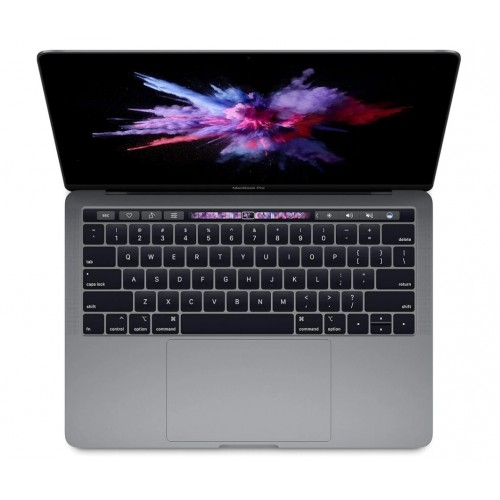
If a seller cannot tell you these three things, they have not opened the laptop, and you should weight everything else they say accordingly. On our Dell range and our MacBook range the configuration is listed against each machine, because it is the first thing anyone asks.
What does the physical inspection cover?
Work from the outside in.
Hinges. Open and close the lid slowly, three or four times. It should move smoothly and hold position at any angle. Creaking, grinding, or a lid that flops shut means the hinge mounts are working loose from the chassis — the single most expensive common fault on an ageing laptop, and one that gets worse fast.
Screen. Display a plain white image, then a plain black one, and look across the panel at an angle. You are hunting for dead pixels, dark blotches where something has pressed on the panel, backlight bleed at the edges, and the faint horizontal band that signals a failing cable. Check the webcam while you are there.
Keyboard and trackpad. Open a text document and press every key, including the function row. Look for keys that need a harder push than their neighbours, and for shine on the most-used caps — heavy shine is a rough proxy for how many hours the machine has done. Run a finger across the whole trackpad surface and make sure the click is even across it.
Ports and sound. Plug something into every USB port, the headphone jack and the video output. Charge from each charging port if there is more than one. Play audio through both speakers.
Fans. Push the machine for a minute with a browser full of tabs and listen. A rising whine that never settles, or hot air that smells dusty, usually means the cooling needs a clean — fixable, but factor it in. Our condition grades describe how we score the cosmetic side of all of this, so you know what a grade actually promises.
What about the software and the locks?
This is where private sales go wrong most often, and it is entirely invisible on the outside.
Insist on seeing the laptop boot all the way to a usable desktop. A machine that stops at a firmware or BIOS password prompt is a brick unless the seller knows that password — and on most business laptops it cannot be cleared at home. On Apple machines, confirm Find My is switched off before money moves, because Activation Lock survives a full erase and ties the machine to an account you will never have access to.
Ex-corporate Windows laptops carry a second trap: enrolment in a company's device management system. It can look like an ordinary personal laptop until someone reinstalls Windows, at which point the enrolment reappears and the machine asks for a login from a company that has no reason to help you. Ask directly whether the laptop was released from company management, and prefer sellers who know what the question means.
Finally, make sure the drive has been properly erased rather than just handed over with the old account still signed in. You do not want someone else's files, and they do not want you to have them.
Is it worth buying privately at all?
Sometimes, if you know the machine's history and you are comfortable with the trade-off. The trade-off is real though: a private sale is sold as seen, and once the transfer clears there is nobody to go back to if the hinge fails in a month.
Buying from a refurbisher moves that risk off your side of the table. Every laptop we list is tested and graded in Auckland against the checklist above before it goes on the site — the same process described in how we test and grade every device — and it ships with a 12-month warranty, 15-day returns and free NZ-wide delivery. You also keep the consumer rights that apply to any purchase from a trader in New Zealand, which a private sale does not give you.
If you are choosing between models rather than sellers, our student laptop picks walk through what the specs above mean in practice, and see current prices on the model pages. And if the laptop you are replacing still works, it is worth getting a trade-in quote on it before it goes in a drawer.