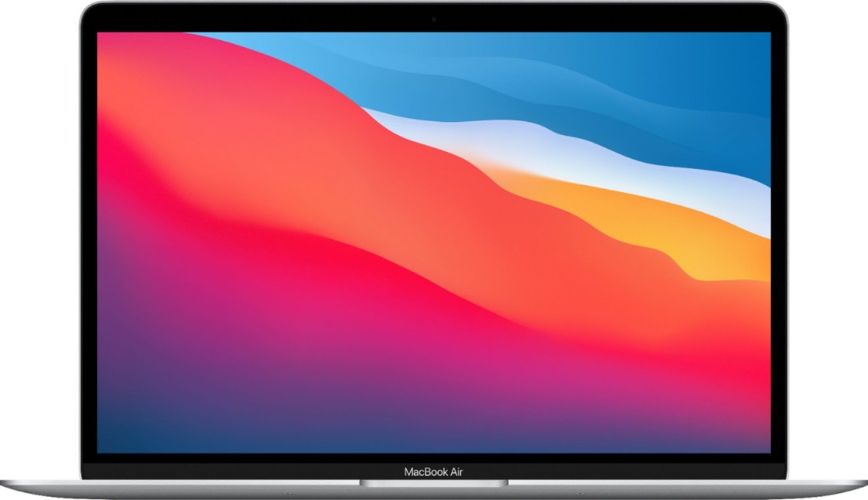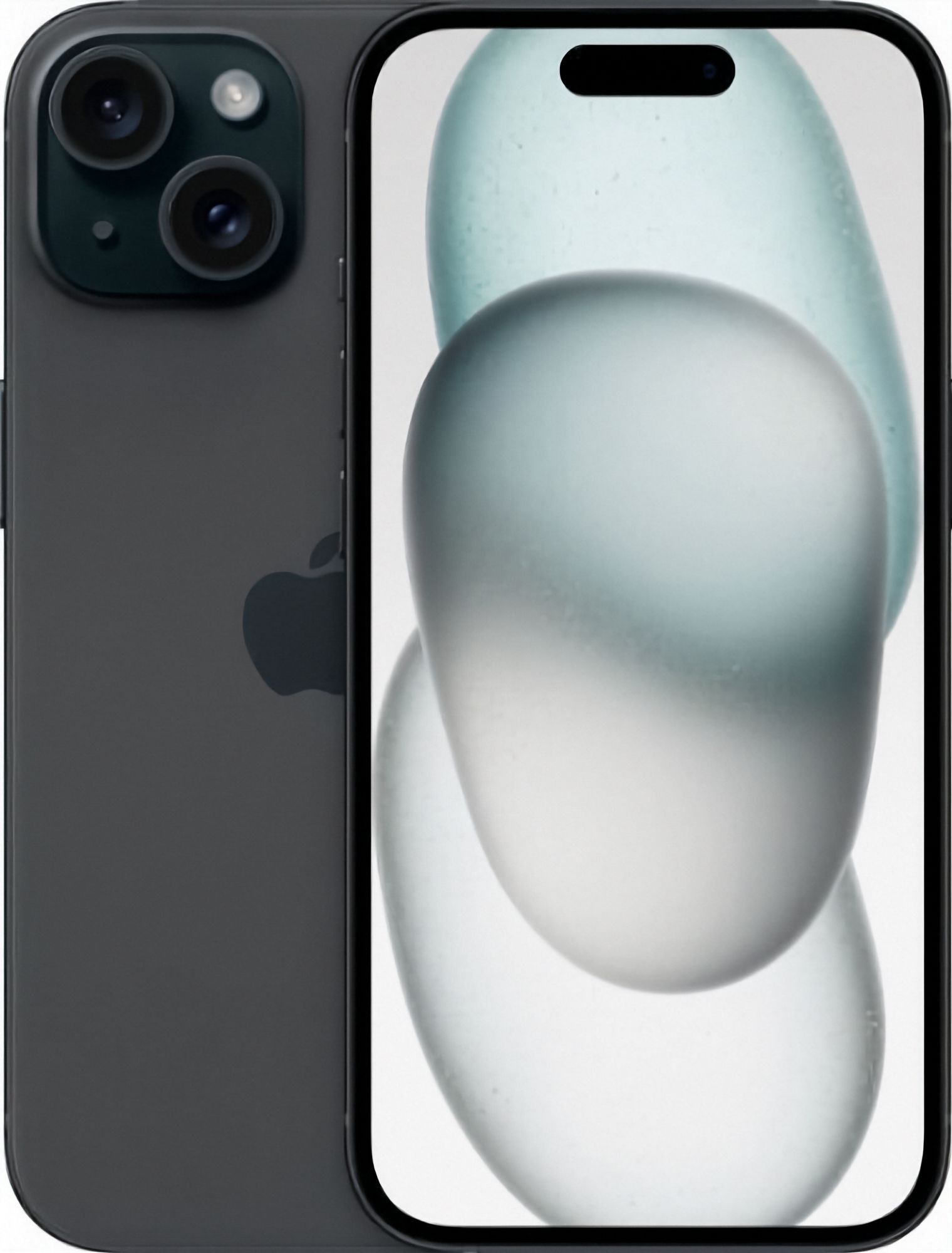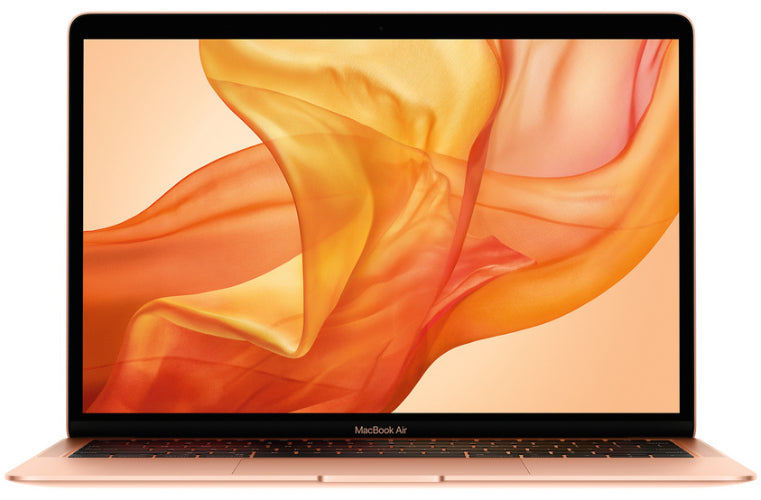
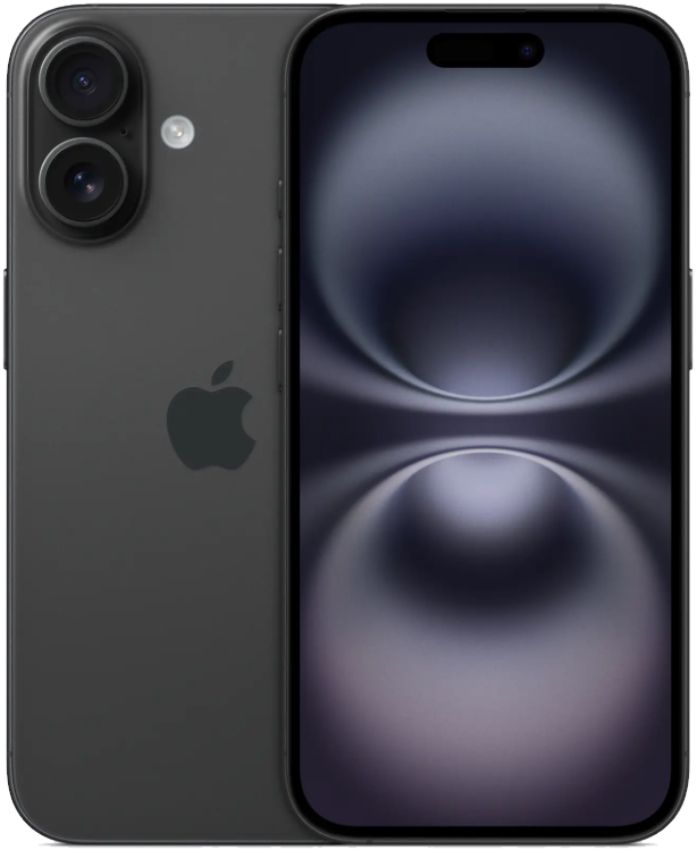
Choosing a phone for a parent or grandparent is a different job from choosing one for yourself. You are optimising for things a spec sheet barely mentions: text that can actually be read, a phone that survives a kitchen-counter drop, and a setup that does not depend on anyone remembering a menu path. A recent refurbished handset fits this brief unusually well — current-enough hardware for clearly less, tested and graded in Auckland, backed by a 12-month warranty. This guide covers how to pick the model, which settings to change on day one, and how to keep the phone usable once the box is in the recycling.
Should an older family member buy new or refurbished?
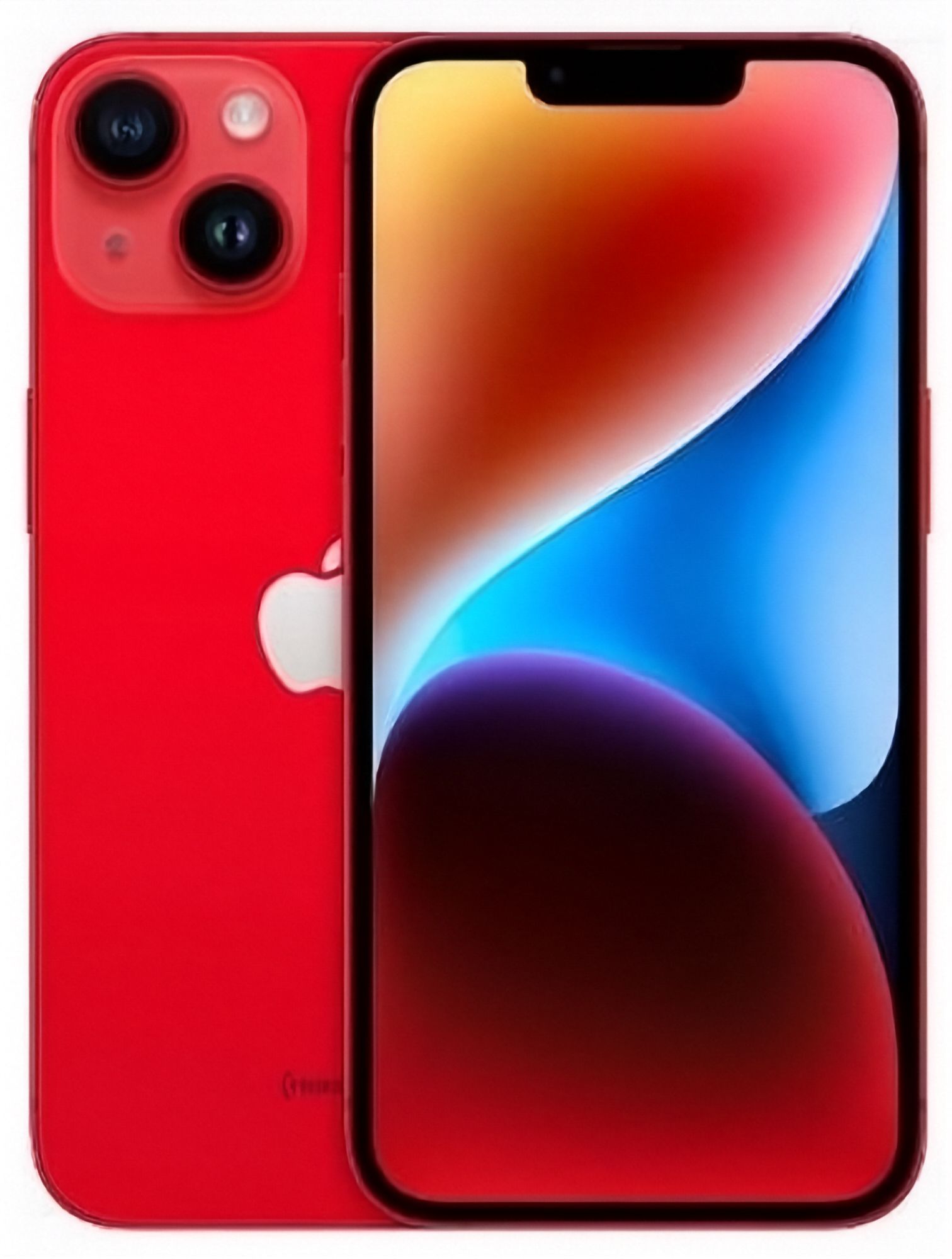
For most older buyers, a refurbished model from a recent generation is the right call. The phones they will actually use — an iPhone 13 or 14, a Galaxy S22 or S23 — already have the screens, cameras and app support that matter to them, and none of the everyday features an older user relies on, from calls and messages to photos and video chat, ask for the newest chip. The money saved is better spent on a bigger storage tier or a proper case.
What matters is who is selling. A phone from a marketplace listing is whatever the seller's photo makes it look like; a phone from a trader who tests devices is a known quantity. At EcoLoop every device is tested and graded in Auckland before it is listed, every phone we sell holds at least 80% of its original capacity, and orders arrive with a 12-month warranty and free NZ-wide delivery. The full range sits in our refurbished phones collection — browse it with your older family member rather than for them, because the model they like the look of is the one they will keep using. Prices move with model and stock, so see current prices on the model pages.
What features matter most for an older user?
Skip the spec-sheet race and look at five things.
Screen. A 6.1-inch or larger screen makes text genuinely readable and icons easier to hit. If eyesight is fading or hands are unsteady, a bigger screen is worth more than a faster processor. Both the refurbished iPhone collection and the refurbished Samsung collection show screen size on every model page.
Battery. Ask for the battery health number and match the tier to the actual user. Our phones are listed at 80%, 90% or 100% battery health: someone who is near a charger most of the day is fine at 80%, while a heavy user who is out from breakfast to dinner will thank you for 90% or more. Our guide to making a phone battery last longer explains the trade-off properly.
Weight and handling. A heavy phone aches in arthritic hands after an evening on the couch. A lighter model with a fitted case that has a good grip beats a premium slab for this buyer every time.
Condition grade. If budget pushes you towards a lower cosmetic grade, read what the grades actually describe — scratches and marks, not how the phone works. The condition guide explains each grade, and a "Good" grade with strong battery health is often the better buy.
The basics they will touch daily. Easily reachable power and volume buttons, a charging cable that plugs in either way, and a speaker loud enough for speakerphone. Small kindnesses like these prevent most of the "the phone is broken" calls to you.
iPhone or Samsung: which suits them better?
Neither platform is automatically easier — the right answer is the one the family can support. If your relatives already FaceTime, share an iCloud photo library or have an iPhone themselves, an iPhone will feel familiar, and when something goes wrong the person helping is one phone call away rather than a forum post. Apple's accessibility and setup guides are at apple.com.
If they lean Android already, or you want the largest screen for the money, a Samsung Galaxy is the easy recommendation. Galaxy phones keep a familiar physical layout, offer big screens, and Samsung's support hub at samsung.com covers every model we sell. If this is their first platform change, our guide to switching from Android to iPhone walks one direction of the move; going the other way is just as doable with Samsung's Smart Switch, which pulls photos, contacts and messages off an iPhone.
Which settings make the biggest difference?
Spend an hour here before you hand the phone over. It is the setup, not the model, that decides whether the phone gets used.
- Text and display size first. On iPhone: Settings, then Display & Brightness, then Text Size — and the larger-text options under Accessibility go further still. On Samsung and other Android phones: Settings, then Display, then Font size and Display size. Do this before loading anything else, so every later decision is made with eyes that work.
- One clean home screen. A single page of six large icons: Phone, Messages, Camera, Photos, Maps, Settings. Move everything else away, and set a wallpaper carrying their own name. It ends the "wait, is this my phone?" moment on the spot.
- Emergency information. Fill in the medical or emergency ID with key contacts and conditions, and show them the emergency gesture — on both iPhone and Galaxy it fires from the side button, and it is worth rehearsing twice.
- Calm calls. Turn on the option to silence unknown callers if spam is wearing them down, and save family contacts with photos so an incoming call is recognisable at a glance.
- A voice assistant. Talking to the phone handles dialling, timers, weather and reminders without small buttons at all — the most underrated accessibility setting there is.
- Wi-Fi and their own account. Join their home wi-fi, sign them into an Apple or Google account in their own name rather than yours, and write the password on the same sheet as everything else.
How do you handle day-one setup without a fight?
Do it together, at their kitchen table, with the box out and the television off. A pattern that works: charge to full, run the software update, set the display sizes, join wi-fi, sign into their account, move contacts and photos across, then leave the one page of large icons. Finish with a two-line cheat sheet — how to answer, how to dial, how to charge — taped inside the drawer where the charger lives.
Add protection from day one, not "later". A fitted case and a tempered glass protector are cheap insurance against the two failures that end most older users' phones: a fall onto a tile floor and keys in the same pocket. Our case and screen protector guide separates what actually protects from marketing, and if the worst happens anyway, screen and battery work is handled at our repair counter, usually for less than replacing the phone.
Before cutting the old plan, check the new phone works on their carrier. Devices in our collections are listed as unlocked for all NZ carriers, and this explainer on whether refurbished phones are unlocked covers exactly what to confirm before the SIM or eSIM moves.
What if it turns out to be the wrong phone?
Give yourself a way back. Orders come with a 15-day change-of-mind window, so if the screen is too small, the weight wrong or the model simply not to their taste, the phone can come back inside that window under our 15-day returns. On top of that, your consumer rights apply whatever any store policy says.
And when the new phone is running well, deal with the old one while the setup is fresh. Back up anything still on it, sign out of the account, then put it through trade-in: model, storage and condition set the quote, and the credit can go against the order you have just placed. A drawer of dead handsets helps nobody — a trade-in quietly funds the next upgrade.
Buy for readability and handling rather than benchmark charts, set the display up before the apps arrive, and keep one calm page of icons: that is how a phone becomes something an older family member actually uses, instead of another thing to be confused by.