Upgrading from Android to iPhone is the fun part; the paperwork is not. Years of photos, chats, contacts and app logins are sitting in a phone you are about to stop using, and the fear of losing something quietly is what keeps a lot of people on a phone they have already outgrown. The good news is that most of your data moves cleanly with free tools from Apple, Google and Samsung. This guide walks through what transfers, how the transfer actually runs, what will not carry across, and when it is safe to wipe the old phone.
How do I move photos, chats and contacts from Android to iPhone?
Apple's free Move to iOS app handles the bulk of the job. You install it on the Android phone and run it while setting up the new iPhone, with both phones on the same Wi-Fi network and both on power. It copies photos and videos, camera roll, message history, contacts, call history, email accounts and many free apps. Apple explains the current requirements on its Switch to iPhone pages.
Two practical notes. First, the transfer runs during setup, so start it before you finish setting up the new iPhone. If you have already gone through setup, you can erase the new iPhone and run it again, or move the remaining pieces by hand. Second, it is fine to split the job. For photos, installing Google Photos on the new iPhone and letting it sync often beats one giant wireless transfer, and it leaves your originals safe in the cloud while you check everything copied.
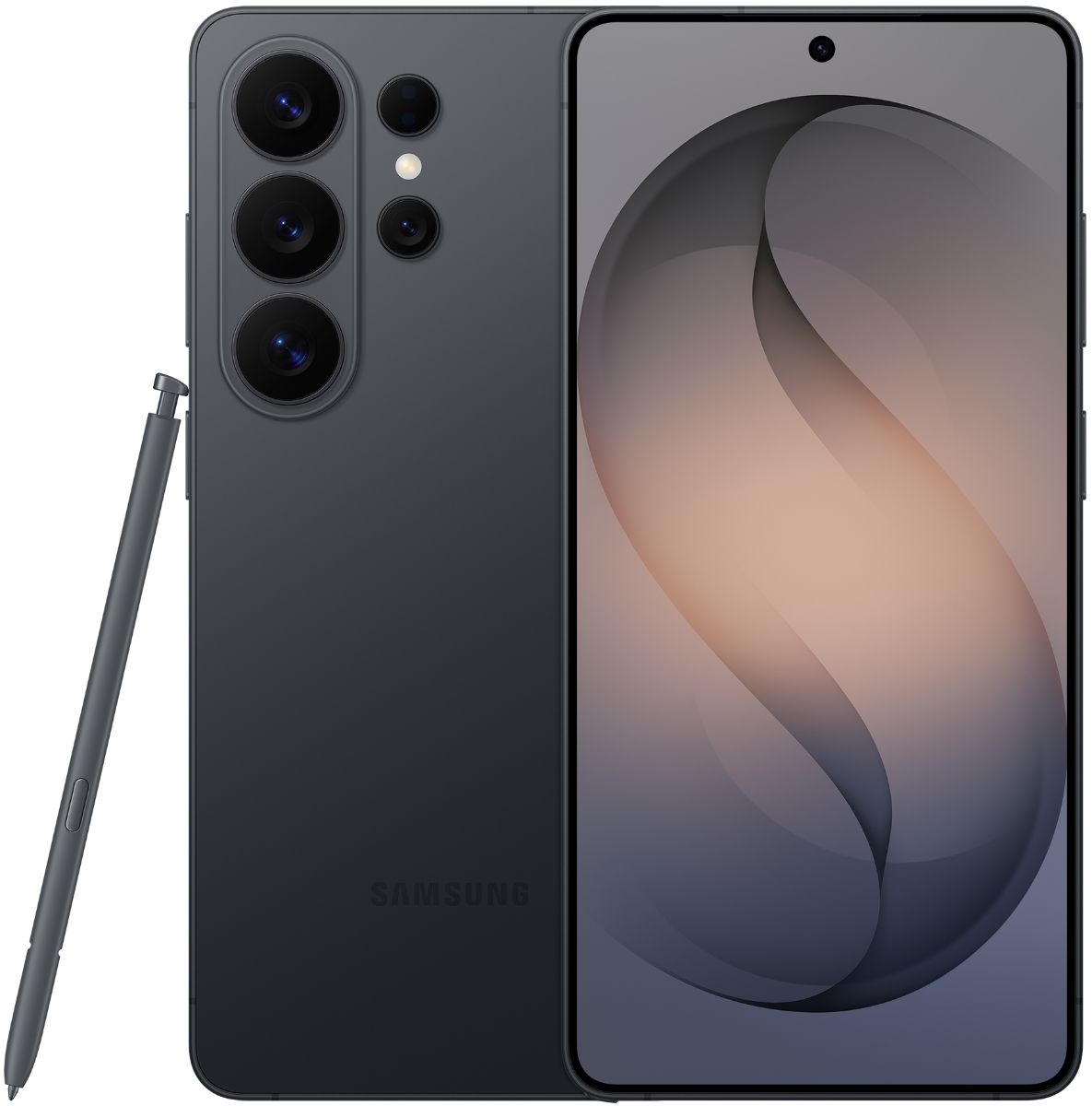
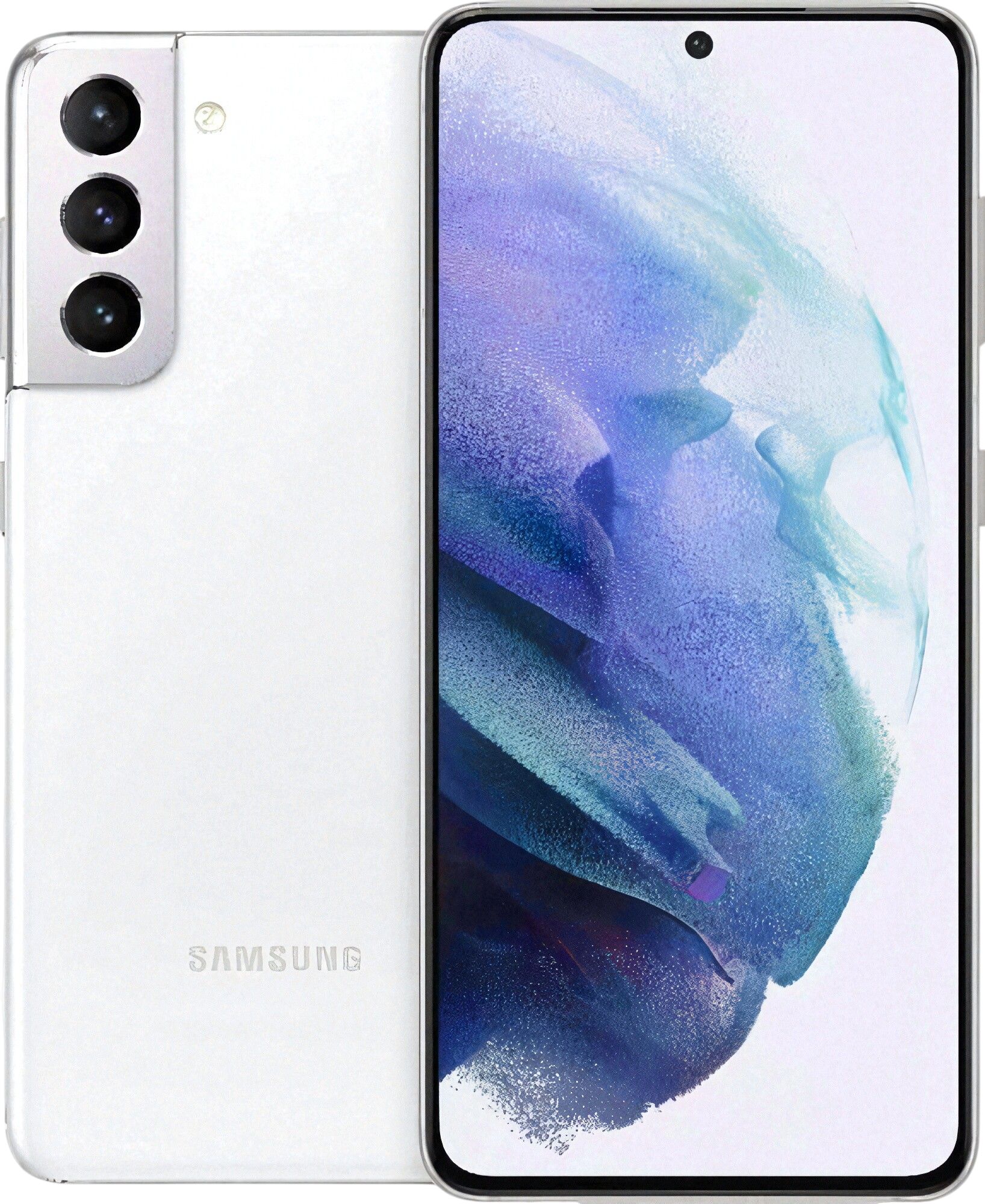
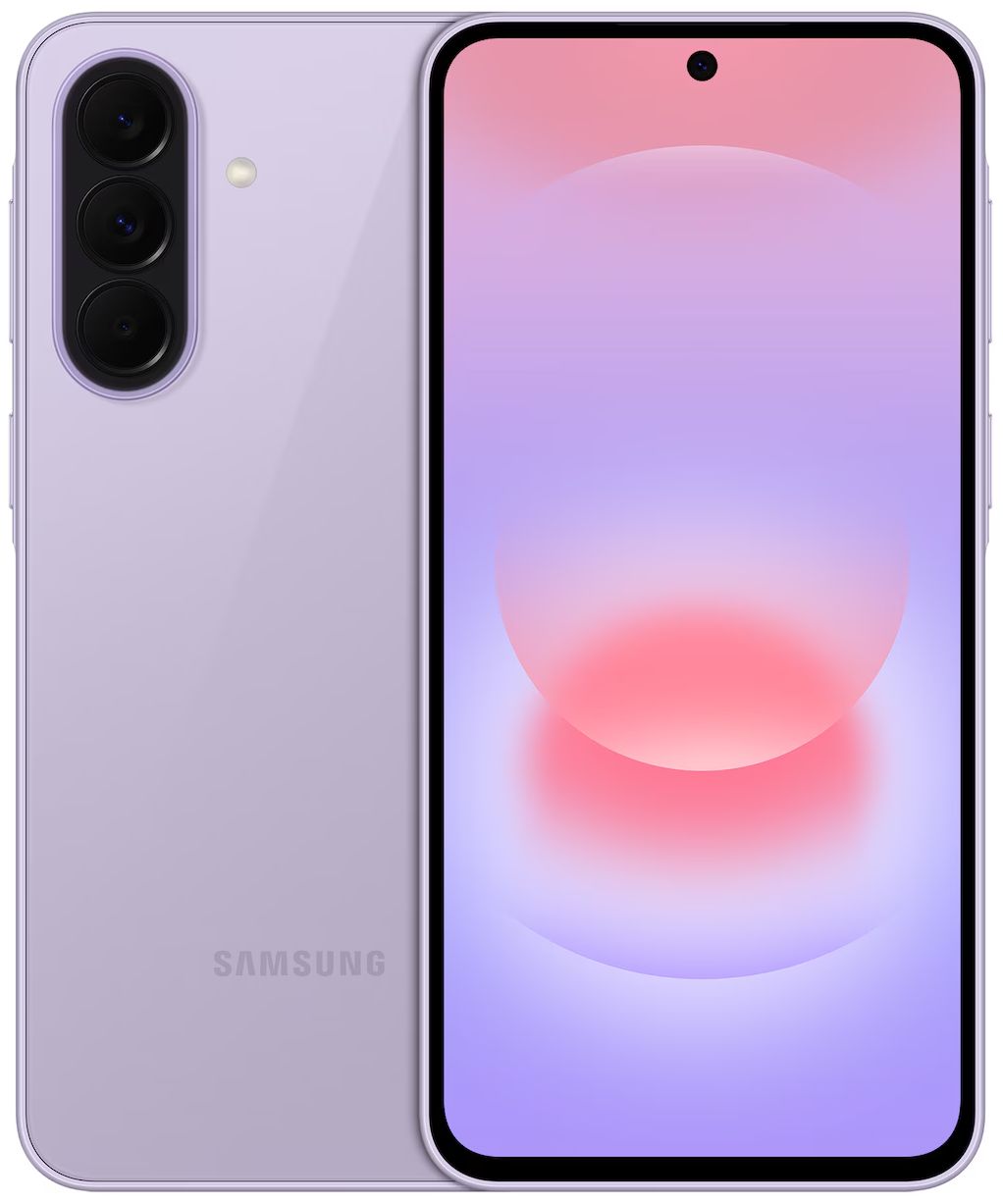
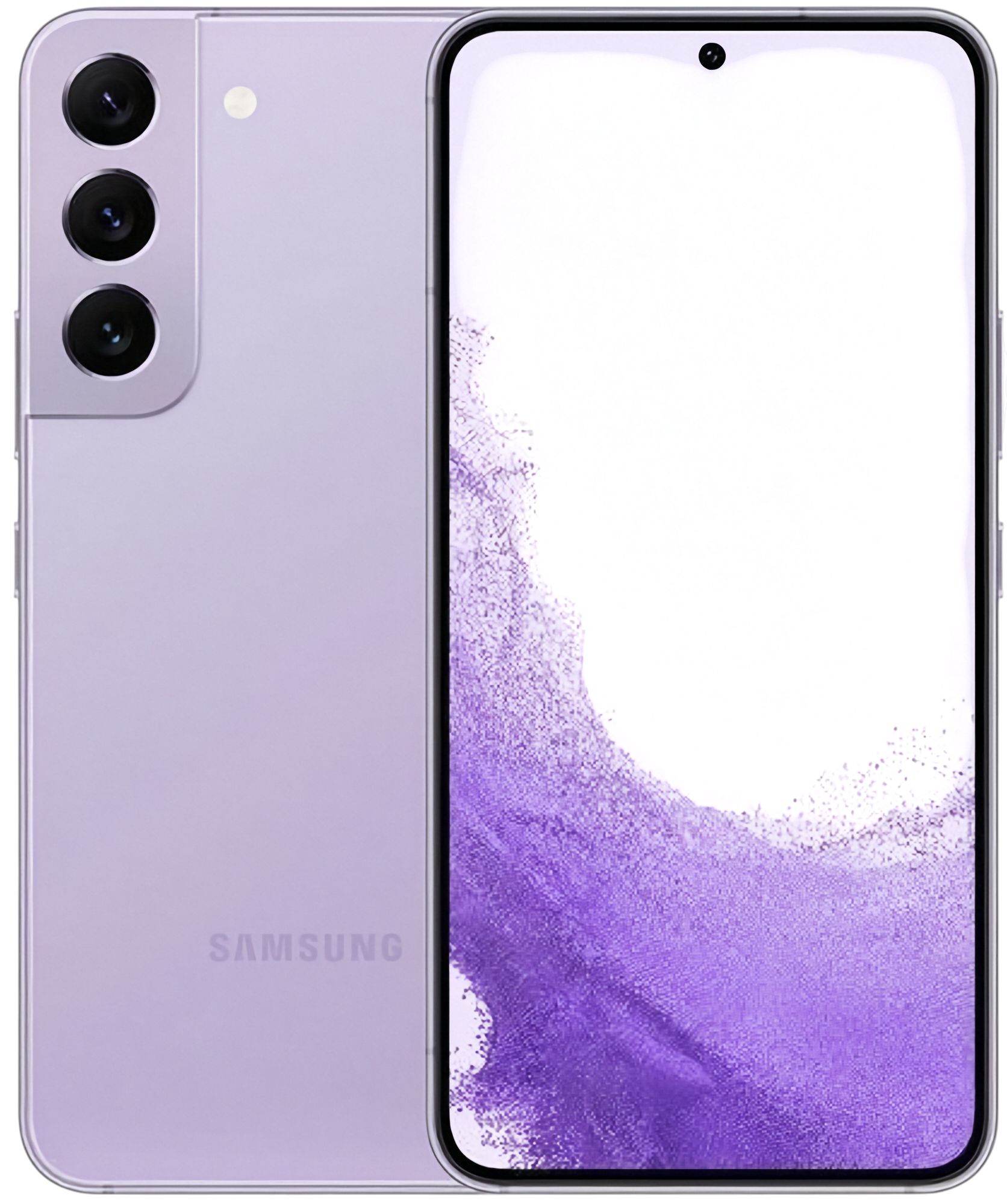
Samsung phones have their own toolchain. Smart Switch is excellent for Samsung-to-Samsung moves, but when the destination is an iPhone, Move to iOS remains the official path. You can confirm model-specific details on Samsung's NZ site.
Will my WhatsApp and chat history come across?
WhatsApp has its own Android-to-iPhone transfer built in. On the Android phone, open WhatsApp's chat settings and look for the option to move your chats to iOS, then follow the one-time code flow with both phones on the same Wi-Fi network. Run it before you wipe the old phone, and wait until the copy is genuinely finished before going further.
Plain SMS history can move through Move to iOS. Other chat apps vary: services that store history on their own servers, such as Messenger, Signal and Telegram, restore as soon as you sign in again on the new phone, while anything saved only on the device may stay behind.
Two categories need a careful process rather than a transfer tool. Banking apps and two-factor authentication apps each have their own move procedure, usually signing in on the new phone before signing out of the old one. And if any service texts codes to your number, make sure the number lands on the new phone first, so you can still receive a code while you set things up.
How do contacts, calendars and passwords sync?
Contacts are the easy part. If yours live in a Google account, simply add that account on the iPhone, or install Google Contacts, and both phones keep pointing at the same list. If you would rather consolidate into Apple's system, export a copy from Google and import it into iCloud Contacts.
Calendars work the same way. Add the Google account on the iPhone and your calendar shows up and keeps syncing, or do a one-time export and import if you are leaving Google's calendar behind.
Passwords are the piece most people forget. If you save passwords in Chrome or Google's password manager on Android, export them and bring them into the iPhone's built-in passwords store. Whatever route you use, sign in to your important accounts on the new iPhone before wiping the old one, so nothing is stranded behind a verification code that only the old device could see.
What does not transfer from Android to iPhone?
- Paid apps. Purchases are tied to the store they were bought from, so a paid Android app has to be bought again on the App Store. Free apps just need re-downloading.
- Music files you own yourself. Streaming services carry over through their apps, but locally stored audio files have to be copied across manually.
- Game progress saved only on the device. Anything tied to an account or cloud save restores when you sign in; anything that is not has to be left behind.
- Ringtones, launchers and home-screen layouts. iOS lays out the home screen differently, so your new phone will not look identical to your old one. Our first-day setup checklist for a new iPhone covers the settings worth doing before you load it up.
- Apps your watch or earbuds depend on. Check that a companion app exists on the App Store before you retire the old phone, and re-pair the accessory to the new one.
None of these is a dealbreaker. It is simply a list to work through instead of hoping nothing important was in the gap.
When should I wipe my old Android phone?
If you are keeping the phone as a spare, there is no rush at all. If you plan to trade it in or sell it, wait until the new phone has properly proved itself: open the photo library and confirm your pictures and videos are there, send and receive a message, and check your contacts and the accounts that matter most. Our trade-in page explains what we check when a phone arrives with us.
Then sign out of your Google account before the factory reset, not after. Signing out clears the factory reset protection that ties the phone to your account; if you erase first, the lock stays on and the next stage of the sale or trade-in stalls until you are contacted to clear it. Our guide to removing activation lock and FRP before you trade in walks through the whole order of operations. Only erase once you are certain nothing else is still needed from the old device.
Is a refurbished iPhone a good move from Android?
Yes, as long as the seller is upfront about condition. Every phone EcoLoop sells is tested and graded in Auckland, comes with a 12-month warranty and 15-day returns, and ships with free NZ-wide delivery. Battery health is published in tiers of 80%, 90% or 100% battery health, so you know what you are getting before you order, and every phone we sell holds at least 80% of its original capacity. Prices change with stock, so see current prices on the model page for the refurbished iPhones collection, or browse the wider refurbished phones range if you are still deciding.
Take the switch in the right order: move the data, check it properly on the new phone, and only then wipe the old one. If anything feels off after delivery, use the 15-day change-of-mind window rather than living with it, and remember that your consumer rights apply whichever way you choose to buy. The FAQ page answers the questions buyers ask us most often if you are still weighing up models.
In stock now: Samsung Galaxy
Live prices from our current stock — updated automatically. Every device includes a 12-month warranty and free NZ-wide shipping.
- Samsung Galaxy J4 — from NZ$139.00
- Samsung Galaxy A06 — from NZ$148.00
- Samsung Galaxy A10 — from NZ$149.00
- Samsung Galaxy S10e — from NZ$228.72
- Samsung Galaxy A07 — from NZ$228.72
- Samsung Galaxy A35 — from NZ$332.98
- Samsung Galaxy S21 — from NZ$343.62
- Samsung Galaxy S21 FE — from NZ$348.00