Leaving iPhone for Android is a genuinely different job from the reverse move, and most guides online get it backwards. The tools are not the same, the gotchas are not the same, and one of them is easy to miss: iMessage. iMessages from friends and family who use iPhones can keep arriving on the old phone sitting in a drawer instead of reaching you as normal texts on the new one. This guide walks through the order of operations for an iPhone-to-Android swap: what to do before you start, how the data actually moves, what will not carry across, when to switch iMessage off, and when it is safe to wipe the old iPhone.
What should I do before I swap from iPhone to Android?
Work through this list on the iPhone while it is still your daily driver, before the new phone has fully taken over:
- Make a recent iCloud backup, and make a second copy of anything irreplaceable (baby photos, business documents) somewhere outside iCloud. A transfer tool is not a backup.
- Unpair your Apple Watch from the iPhone. Unpairing backs up watch data to the iPhone and takes Activation Lock off the watch cleanly.
- Turn off iMessage on the iPhone and release your number with Apple. Details in its own section below.
- Note down any account that relies on texts to your number for sign-in codes, because between the two phones there is a short window where those codes have to land somewhere.
- Keep two-factor and authenticator apps signed in on the iPhone until the same accounts are working on the Android phone. Sign out of the old device last, not first.
- Leave the iPhone signed in to iCloud and untouched until you have confirmed your data on the new phone. You will need it for the transfer, and you can always erase it later.
None of these steps takes long, and doing them in this order means nothing gets stranded mid-move. Our guide to wiping a phone before you trade it in covers the same ground from the other side, which is worth reading once the new phone has proved itself.
How do I move photos, chats and contacts from iPhone to Android?
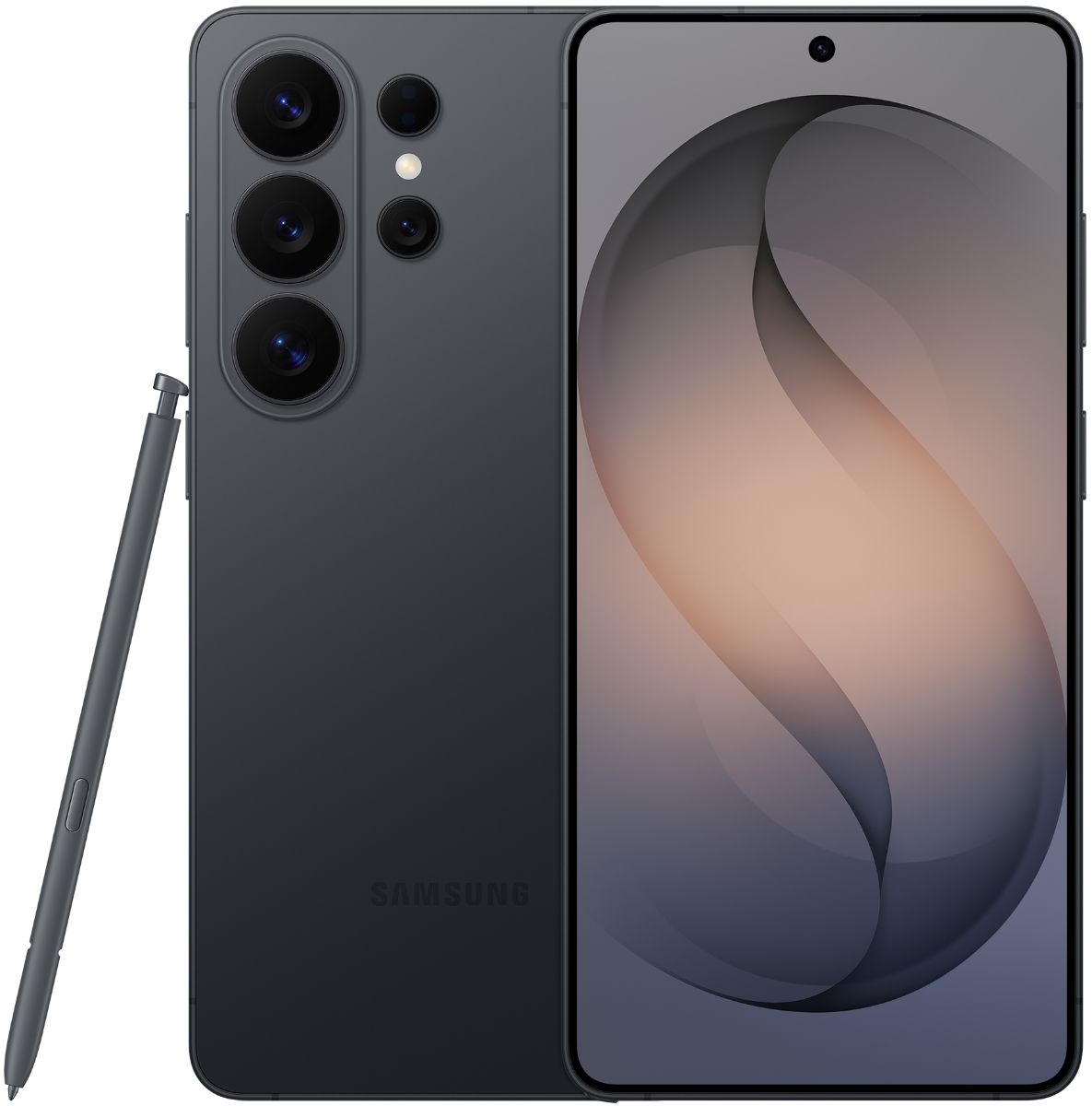
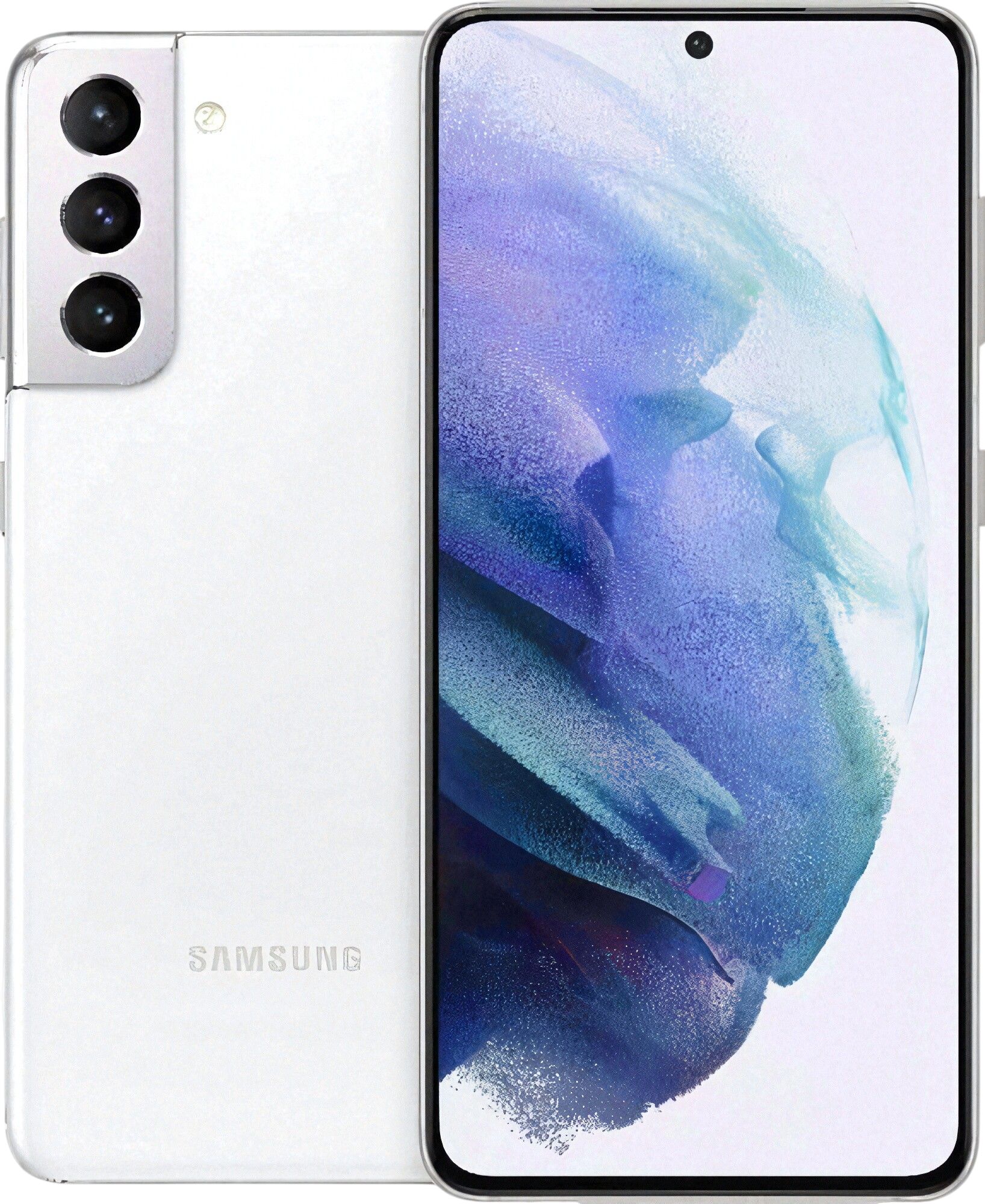
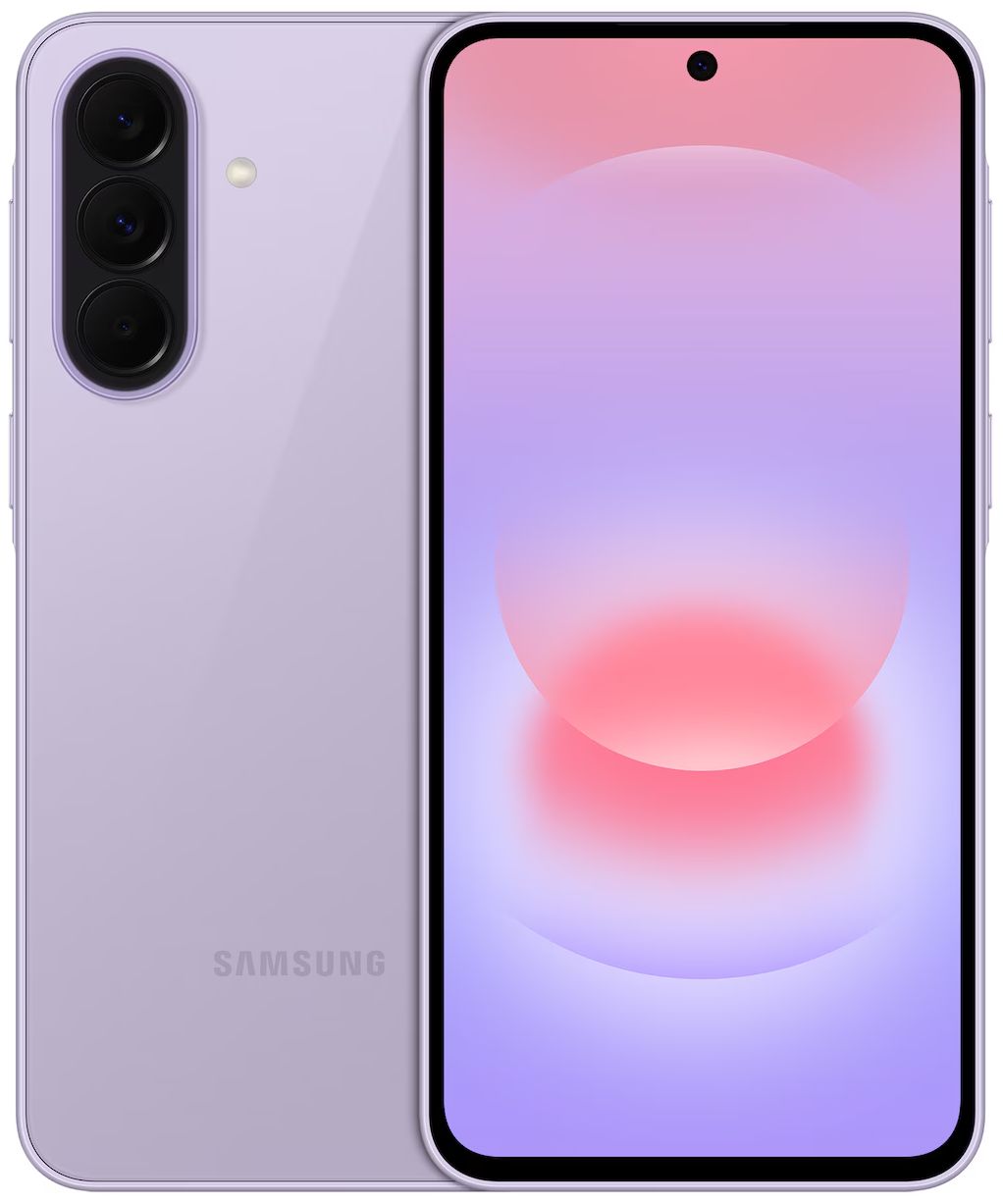
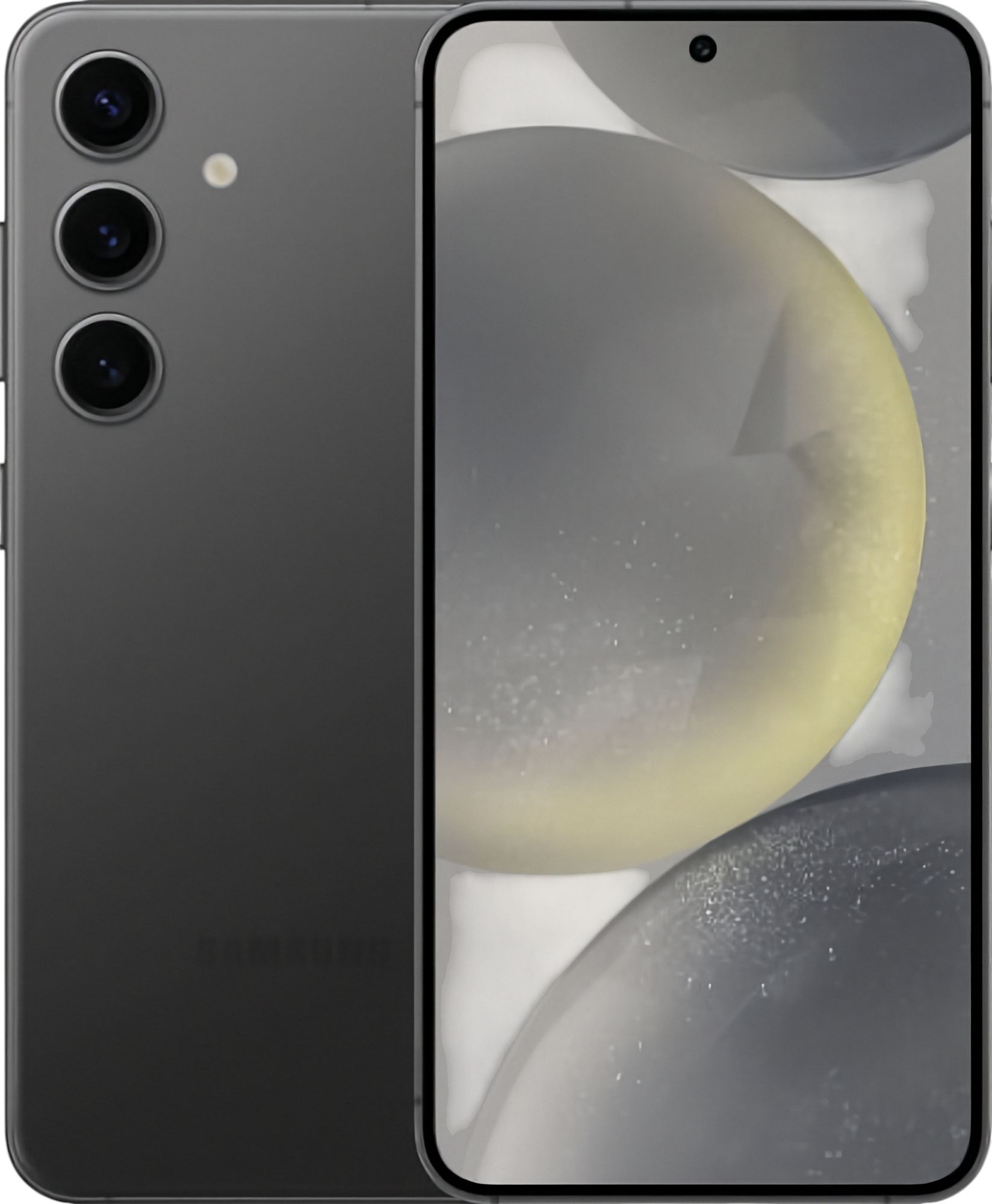
Samsung makes the smoothest landing for iPhone refugees. Smart Switch runs on the Galaxy phone, connects to the iPhone either over a cable or by signing into your iCloud account, and copies photos, contacts, calendars, messages, WhatsApp chats and app list in one pass. Samsung explains the supported methods and cable requirements on its NZ site. Non-Samsung Android phones have similar setup tools from Google and the manufacturer, usually offering the same two paths: a direct cable connection or an iCloud sign-in.
Whichever tool you use, treat it as step one rather than the whole job:
- Photos: if the transfer feels slow, install Google Photos on the Android phone and let your library sync there as well. Two copies during the move is a feature, not a problem, and you can delete the duplicate once everything checks out.
- WhatsApp: the app ships its own iPhone-to-Android chat transfer. Start it on the iPhone, keep both phones on the same Wi-Fi network, and wait for the copy to finish before touching anything else. Chat history lives on the device, so this has to happen before you wipe the iPhone.
- Contacts: if yours live in iCloud rather than Google, export a copy from iCloud.com and import it into your Google account, or let the setup tool do it. Check a handful of names on the Android phone afterwards, including ones with accents or macrons.
- Passwords: this is the step people forget and regret. Export your saved passwords from iCloud and import them into Google's password manager or your browser on the new phone. Do it before signing out of anything on the iPhone.
Does iMessage need to be turned off before I switch?
Yes, and it is the one step with a real-world consequence if you skip it. iMessage and FaceTime run on your Apple ID and deliver over data, not the phone network. If you hand the iPhone on or leave it unused without releasing your number, Apple keeps routing incoming messages in that format to the old device, so anything an iPhone user sends you keeps arriving as an iMessage there, and it never appears on your new Android phone.
Turn iMessage off in Settings on the iPhone, then release the number through Apple's own self-service process, described on Apple's support site. If your iPhone is already sold, traded or recycled when you realise you missed this, the same page still lets you deactivate the number remotely. FaceTime behaves the same way, so turn it off at the same time.
One related detail: SMS texts that have always been plain texts switch over on their own once the SIM or eSIM moves, including codes from banks and other services, which are sent as SMS. The problem is only the iMessage side, but that is exactly the side people forget.
What does not carry across from iPhone to Android?
Plan around this list instead of discovering it in week two:
- Paid app purchases. Licences do not cross store boundaries, so anything you paid for on the App Store gets bought again on Google Play if you want it.
- iMessage and FaceTime history. Plain SMS can move through the transfer tools; blue-bubble conversations stay on the iPhone, so export or screenshot anything you want to keep.
- Apple Watch. It only pairs with iPhone, so it retires or stays with a kept iPhone. There is no adapter for it on Android.
- Apple Music downloads and any audio files you stored on the device. Streaming services carry across through their apps; files you own must be copied by hand.
- Health and fitness history. Apple keeps that inside its own ecosystem, and there is no clean export path to Android, so treat years of trend data as staying behind.
- Home-screen layouts, widgets, ringtones and iOS-only apps. The new phone will not look like your old one, and companion apps for some accessories exist on only one platform.
- Game progress saved purely on the device. Anything tied to an account restores on sign-in; anything not tied to one starts again.
When should I wipe my old iPhone, and can I trade it in?
Only after the new phone has properly proved itself. Open the photo library and confirm your pictures are there, read your oldest WhatsApp thread, receive a test text, and sign in to your important accounts on Android. Then sign the iPhone out of iCloud, not the other way round: signing out removes Activation Lock, and if you factory-reset first, the phone stays locked to your Apple ID and a trade-in or sale stalls until you can clear it remotely. Our guide to removing activation lock and FRP before you trade in walks the whole order of operations, and the iPhone trade-in guide explains what affects your quote before you send the phone off.
Is a refurbished Android phone a good move from iPhone?
It is often a far cheaper way to make the switch than paying flagship money, and a good refurbished unit is hard to tell from new in day-to-day use. Every phone EcoLoop sells is tested and graded in Auckland, comes with a 12-month warranty and 15-day returns, and ships with free NZ-wide delivery. Battery health is published in tiers of 80%, 90% or 100% battery health, and every phone we sell holds at least 80% of its original capacity, so there are no surprises a fortnight in. Stock and pricing move constantly, so see current prices on the model page for the refurbished Samsung and refurbished Google Pixel collections, or browse the full refurbished phones range if your mind is still open.
It works the other way round, too: the trade-in page takes your old iPhone off your hands once the Android one is working, and the condition guide explains exactly how graded devices are assessed. If something feels off after delivery, use the 15-day change-of-mind window rather than living with it, and remember that your consumer rights apply whichever direction you swap in. The FAQ page answers the questions buyers ask us most if you are still deciding.
In stock now: Samsung Galaxy
Live prices from our current stock — updated automatically. Every device includes a 12-month warranty and free NZ-wide shipping.
- Samsung Galaxy J4 — from NZ$139.00
- Samsung Galaxy A06 — from NZ$148.00
- Samsung Galaxy A10 — from NZ$149.00
- Samsung Galaxy S10e — from NZ$228.72
- Samsung Galaxy A07 — from NZ$228.72
- Samsung Galaxy A35 — from NZ$332.98
- Samsung Galaxy S21 — from NZ$343.62
- Samsung Galaxy S21 FE — from NZ$348.00