Why Does My Android Phone Need a Backup Before Trade-In?
A trade-in looks quick on the surface: you request a quote, post the phone, it gets checked, and credit comes back. The part nobody sees is that the phone you posted will be reset and sold on, and anything still living only on that device goes with it — the school photos, the group chats that hold your family's plans, the notes app full of half-finished ideas, the login codes you never wrote down. A backup is what turns the trade-in from a permanent deletion into a paperwork job.
The good news is that Android has backup built into the system, so you do not need to install anything unusual to get this done. The whole job comes down to three questions: what needs saving, where to save it, and how to be sure the copy actually exists. This guide answers all three for any Android phone heading into a trade-in box, whether it is a Samsung Galaxy, a Google Pixel, or another brand running its own version of Android. If you have not chosen a trade-in route yet, the trade-in page explains how quotes and grading work before you commit.
One honest distinction up front: a backup is not the same as a platform switch. If you are also moving across to a different phone ecosystem, the account and app decisions are a bigger job, and our guide to switching from Android to iPhone covers that side of things. Here we stay with the safety copy you want before any old phone leaves your hands.
What Exactly Should Be in an Android Backup?
Before choosing a tool, be clear about what you are protecting:
- Photos and videos. The largest and most irreplaceable set. Check both the camera folder and any screenshots folder — screenshots quietly eat storage and matter more than people expect.
- Contacts and calendar. Usually already synced to your Google account, but confirm which account they actually live under if you have ever had more than one.
- Text messages (SMS and MMS) and call history. These move with a proper device backup, not with a simple app reinstall, so they are the item most often missing from a rushed attempt.
- App data and settings. Chat history, game saves, Wi-Fi passwords and your home-screen layout — how much survives depends on each app and your backup settings, so read the next section before assuming everything is covered.
- Chat-app histories. Apps like WhatsApp keep their own backup inside the app. Open the app's chat settings and start that backup separately; the system backup does not always cover it.
- Notes, voice recordings and downloads. Notes apps store to different places depending on brand, and downloaded files are not part of a cloud account at all.
- Sign-in codes. Some two-factor authenticator apps do not restore themselves from a backup. Move those accounts to your new phone while the old one still works. Signing out of your accounts and factory resetting the phone is a separate job, and our guide to wiping your phone before trade-in covers that part properly.
Google Backup, Samsung Smart Switch or a Manual Copy: Which One Do I Use?
There are three routes, and most people should run at least two of them.
1. Android's built-in backup. Open Settings and look for Google — some phones list it under System or Cloud and Sync — and find the backup screen. It saves device data, messages and app data to your Google account, inside the storage allowance that comes with the account. Turn on every category that matters, then press the back-up-now button yourself rather than trusting the schedule. If your account's storage allowance has run out, the quiet failure mode is a backup that stopped weeks ago without a loud warning, so check the quota before you rely on it.
2. Samsung Smart Switch. If the phone is a Galaxy, the Smart Switch desktop app on a Windows or macOS computer makes a local copy of photos, messages, calls, contacts and app data straight to the machine, with no cloud involved. Samsung describes the desktop version on samsung.com. A local copy like this is the fastest route for large photo libraries, and it doubles as an archive you can still open years after the trade-in.
3. The manual copy. Plug the phone into a computer over USB and copy the camera and documents folders across by hand. It is clumsy but completely transparent, and nothing hides behind sync settings. Big video files are worth dragging across manually even if you also run a cloud backup.
The sensible combination for most people: the built-in Google backup for settings, messages and contacts, plus a local copy — Smart Switch or a USB folder — of your photos and videos. Cloud backup alone gets slow at tens of gigabytes of video; manual-only leaves your app settings behind.
How Do I Know the Backup Is Actually Complete?
A green tick on the backup screen is a claim, not proof. Before you box the phone, check the copy instead of the claim:
- Look at the last-backup timestamp, then run a fresh manual backup so it reflects today's photos rather than last month's.
- Sign in to your Google account on a computer and browse the actual files: open several of the newest photos, skim the contacts list, open Drive.
- In chat apps, open the app's own backup screen and confirm its status separately from the system one.
- Compare the numbers: the storage screen on the phone shows what it holds, and the cloud account should show a similar picture for the categories it claims to cover.
- Spot-check the odd corners: the voice recorder, browser bookmarks, the notes app, the downloads folder.
If any check fails, fix it and run the backup again. That is the point of doing this the week the courier is booked rather than the morning he arrives at the door. Once the device is reset and on its way, recovery stops being possible, and no amount of explaining at the other end brings the files back.
What If I Am Replacing the Phone at the Same Time?
Back up first, then set up your replacement and sign in with the same Google account — most of the restore runs by itself during first setup. If the replacement is a refurbished phone from us, it arrives tested and graded in Auckland, with a 12-month warranty, and every phone we sell holds at least 80% of its original capacity, so it is ready to receive the data you just saved. Browsing the smartphones collection before you post the old phone takes the pressure out of the wait, too: orders ship with free NZ-wide delivery, and purchases come with a 15-day change-of-mind window, so the restore can happen at a relaxed pace rather than in a panic on the doorstep.
If the new phone is a different brand entirely, plan the app moves before the old one leaves — banking apps and authenticators are the two that most often need the old device present one last time.
Does Consumer Law Say Anything About Trade-Ins and Data?
The money side of a trade-in is an ordinary consumer sale, and you can read about your consumer rights at consumerprotection.govt.nz. The data side is different: once the phone has been reset, the files that were on it are nobody's problem but the owner who skipped the backup. That asymmetry is why the copy you make at home matters far more than any wording on a quote. If you have questions about how the trade-in process itself runs — what condition is expected, what happens if the grading comes back different from your description — the help pages answer them before you post anything.
In stock now: Samsung Galaxy
Live prices from our current stock — updated automatically. Every device includes a 12-month warranty and free NZ-wide shipping.
- Samsung Galaxy J4 — from NZ$139.00
- Samsung Galaxy A06 — from NZ$148.00
- Samsung Galaxy A10 — from NZ$149.00
- Samsung Galaxy S10e — from NZ$228.72
- Samsung Galaxy A07 — from NZ$228.72
- Samsung Galaxy A35 — from NZ$332.98
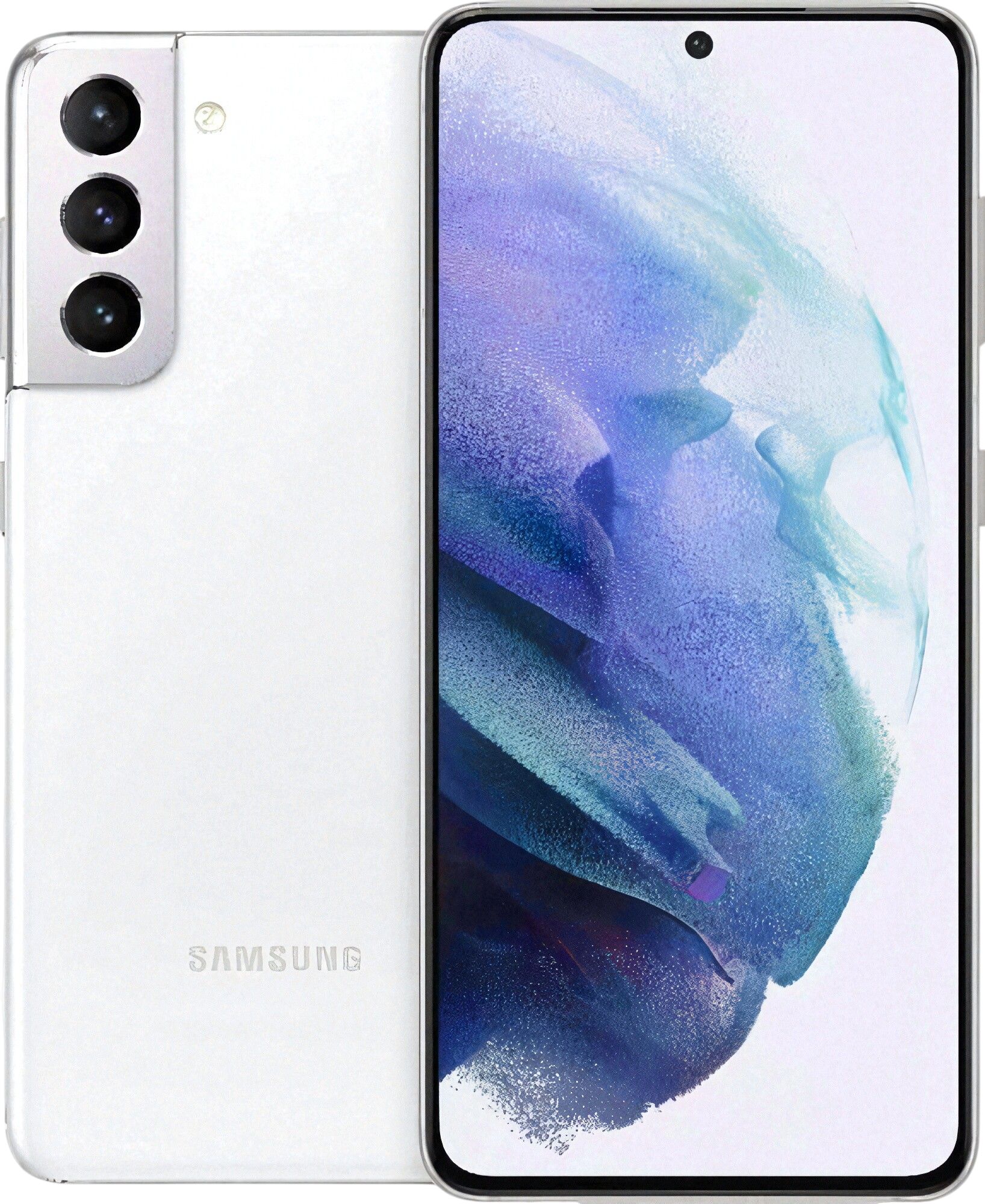
- Samsung Galaxy S21 — from NZ$343.62
- Samsung Galaxy S21 FE — from NZ$348.00