Why is my Verizon Galaxy S22 not sending picture messages?
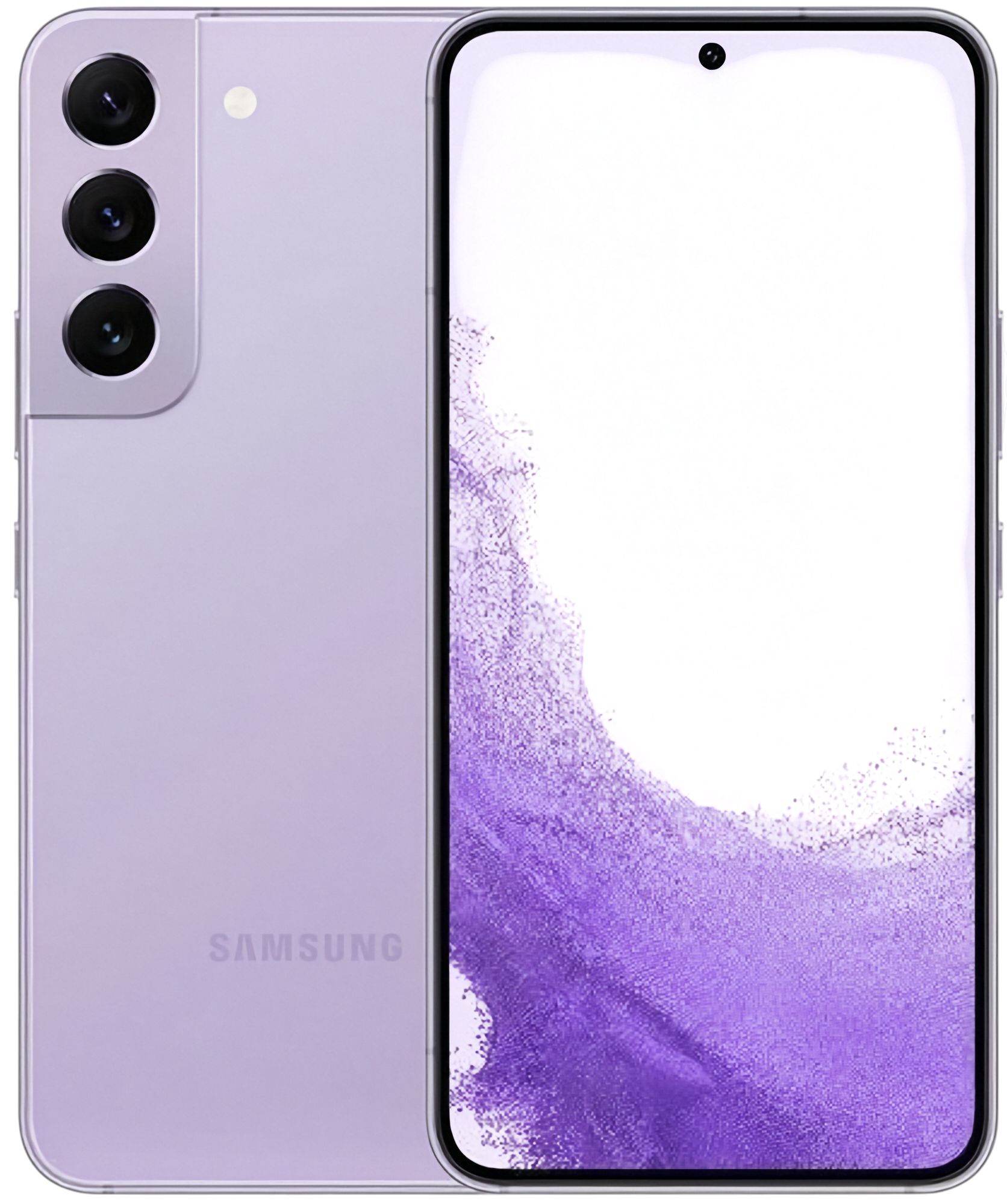
Many Galaxy S22 phones that reach New Zealand were first sold in the United States through Verizon. The hardware is identical to every other US Snapdragon S22, and the phone is SIM-unlocked, so a One NZ, Spark or 2degrees SIM connects and makes calls straight away. The catch is the software: Verizon's firmware is built around Verizon's own network, and its multimedia messaging (MMS) settings are tied to that network.
The symptoms are very consistent:
- Calls and normal text messages work.
- Mobile data may need an APN change, but can be made to work.
- Picture messages (MMS) stay on "sending" and then fail, no matter which APN you type in.
Editing APNs rarely fixes it, because the problem is in the carrier configuration that ships with the Verizon software. The reliable fix is to replace that software with Samsung's own unlocked US firmware, called U1 (region code XAA). It is the same Android version from Samsung, without Verizon's apps, boot screen and network settings, and from then on updates come directly from Samsung.
This guide is exactly the process we used in our Auckland workshop on a Verizon S22, including the two errors we hit along the way and how we got past them.
Is my phone a Verizon Galaxy S22?
Check before you start. Open Settings > About phone and look at the model number:
| Model shown | Phone |
|---|---|
| SM-S901U | Galaxy S22 (US carrier model, e.g. Verizon) |
| SM-S906U | Galaxy S22+ (US carrier model) |
| SM-S908U | Galaxy S22 Ultra (US carrier model) |
If your model ends in U, this guide applies; download the U1 firmware for your exact model (S901U1, S906U1 or S908U1). If it already ends in U1, you are already on unlocked firmware and this guide is not for you.
Also dial *#06# and note your IMEI; the firmware downloader asks for it.
What do I need before I start?
- A Windows PC with about 25 GB of free disk space (the firmware download is around 10 GB, and it unpacks to about 11 GB).
- A good USB cable. Samsung's original cable is best; a USB-C to USB-A cable tends to be more reliable than C to C.
- Your phone charged to at least 50%.
- A full backup. Flashing erases everything on the phone.
- Sign out of your Google account and Samsung account on the phone (Settings > Accounts and backup > Manage accounts). If you skip this, the phone may ask for the old account after the reset.
Downloads
- Samsung USB driver for Windows (official): Samsung Android USB Driver. Install it and restart the PC.
- Firmware downloader, Bifrost (free, open source): Bifrost releases on GitHub. On a normal Windows PC, download the file ending in windows-amd64.zip under the latest release. It downloads firmware directly from Samsung's own servers.
- Odin 3.14.1 3B Patched by realbbb: Patched Odin thread on XDA Forums. Download the attachment named Odin3 v3.14.1_3B_PatcheD.zip from the first post, and also Odin3 v3.14.1.zip from the same post (you need its SS_DL.dll file). The author lists "S22 S901U VZW to S901U1 XAA" as confirmed working. Only download it from that XDA post; many copies on other websites are renamed or modified.
Why the patched Odin? We tried the standard Odin first, and it stopped with "FAIL! SHA256 is invalid" before writing anything. That check blocks the Verizon-to-U1 cross-flash; the patched build skips it. Also avoid anything labelled "Odin 3.14.4": the XDA author explains these are relabelled 3.14.1 builds with an extra network DLL added.
How do I download the U1 firmware?
- Open Bifrost.
- Model: SM-S901U1 (or SM-S906U1 / SM-S908U1 for the Plus / Ultra).
- Region: XAA.
- IMEI: the number from *#06#.
- Click Check for updates, then Download. Bifrost decrypts the file for you when it finishes.
- Make a folder with a short path, for example a folder called S22-U1 directly on the C: drive, and unzip the result into it. You will see five files starting with BL, AP, CP, CSC and HOME_CSC.
Always use the newest U1 firmware Bifrost offers. Samsung phones cannot be flashed back to an older bootloader version, and the latest U1 release is always at least as new as the Verizon software on the phone.
How do I flash it with Odin?
- Unzip the patched Odin into its own folder (for example a folder called Odin-Patched, next to the firmware folder), and copy SS_DL.dll from the original Odin3 v3.14.1 zip into the same folder.
- Close Samsung Smart Switch and Windows Phone Link if they are running (Task Manager > End task). They can grab the phone's connection.
- Put the phone in Download mode: switch it off, then hold Volume Up + Volume Down together and plug in the USB cable. When the blue warning screen appears, press Volume Up once. The screen shows "Downloading...".
- Now start Odin: right-click Odin3 v3.14.1_3B_PatcheD.exe and choose Run as administrator. Open it once only. The first ID:COM box should turn blue and the log should say "Added!!".
- Click the BL button and choose the BL_S901U1... file.
- Click the AP button and choose the AP_S901U1... file. It is large, and Odin will freeze for a few minutes while it checks it. That is normal.
- Click the CP button and choose the CP_S901U1... file.
- Click the CSC button and choose the file that starts with CSC_OYM, not HOME_CSC. The full CSC is what replaces the Verizon carrier settings. Leave USERDATA empty.
- On the Options tab, leave only Auto Reboot and F. Reset Time ticked. Do not tick Re-Partition.
- Click Start. Flashing takes several minutes. When the top-left box turns green and shows PASS!, the phone restarts by itself. The first boot can take a few minutes, then you will see the normal setup screens.
What if Odin gets stuck or fails?
- "FAIL! SHA256 is invalid": you are using the standard Odin. Close it and use the patched build above. Nothing was written to the phone.
- Stuck on "SetupConnection..": this was our second problem, and the cause was simple: two copies of Odin were open at the same time and both were trying to talk to the phone. Close every Odin window (check Task Manager), unplug the phone, hold Power + Volume Down for about seven seconds to leave Download mode, go back into Download mode, and only then open a single Odin. If it still hangs, try another USB port on the back of the PC and a different cable.
- ID:COM box never turns blue: reinstall the Samsung USB driver, restart the PC and try another port.
Until the progress bar starts moving, nothing has been written, so it is safe to close Odin and start again.
How do I check it worked?
After setup, open the dialler and enter *#1234#. The CSC line should now start with S901U1OYM. Then:
- Put your SIM in and send yourself a picture message.
- If it still fails, open Settings > Connections > Mobile networks > Access Point Names, tap the three-dot menu and choose Reset to default, then restart the phone.
The Verizon boot animation and Verizon apps will be gone. Settings > About phone may still show SM-S901U as the model; that number is stored separately from the software and does not affect anything.
Would you rather we did it?
Flashing is safe when you follow the steps, but it does wipe the phone and needs a Windows PC. If you bought your S22 from us and would rather not do it yourself, contact us with your order number via the details on our FAQ page and we'll sort it out with you.
Looking at another phone? Every phone in our Samsung range is unlocked for all NZ carriers and tested and graded in Auckland. Our guide on whether refurbished phones come unlocked explains how network locks work in New Zealand.
In stock now: Samsung Galaxy
Live prices from our current stock — updated automatically. Every device includes a 12-month warranty and free NZ-wide shipping.
- Samsung Galaxy J4 — from NZ$139.00
- Samsung Galaxy A06 — from NZ$148.00
- Samsung Galaxy A10 — from NZ$149.00
- Samsung Galaxy S10e — from NZ$228.72
- Samsung Galaxy A07 — from NZ$228.72
- Samsung Galaxy A35 — from NZ$332.98
- Samsung Galaxy S21 — from NZ$343.62
- Samsung Galaxy S21 FE — from NZ$348.00